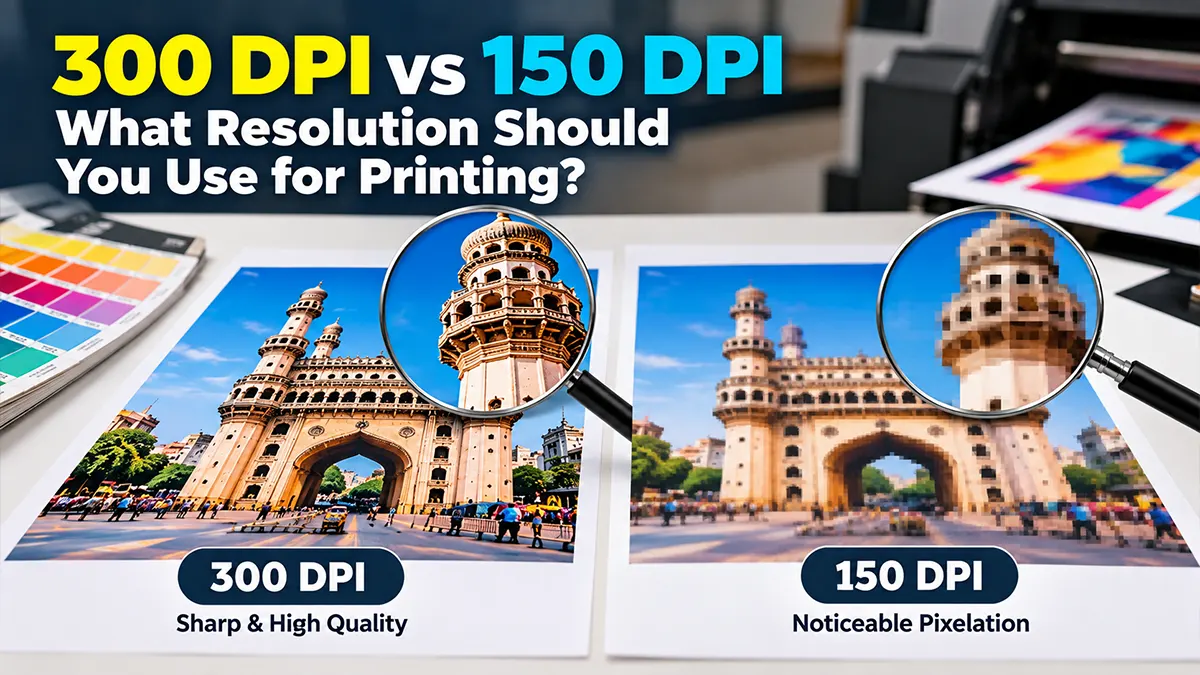
Quick Answer: 300 DPI vs 150 DPI
300 PPI is a common target for high-quality prints that will be viewed relatively close, such as brochures, business cards, flyers and photo prints. Adobe currently describes 300 PPI as an industry-standard reference for high-quality prints.
150 PPI can be appropriate for some larger-format work where the viewer stands farther away. The required resolution is not determined by the number alone: final physical size, viewing distance, printer, substrate and production process all matter. Adobe specifically notes that lower resolutions can work well for large-format prints intended to be viewed from a distance.
Simple rule
Use 300 PPI as a strong starting point for close-viewed, detail-sensitive print. Consider 150 PPI for suitable large-format work, but confirm the printer's specification before production.
What Does DPI Mean?
DPI means dots per inch. It refers to the number of physical dots a printer or output device can place in an inch. Printer resolution and image resolution are related but are not the same measurement. Adobe distinguishes printer resolution, measured in DPI, from image resolution, commonly measured in PPI.
In everyday print discussions, people often say “300 DPI image” when they really mean a 300 PPI image. For technically accurate file preparation, PPI is the more precise term for image pixel density.
What Does PPI Mean?
PPI means pixels per inch. It describes how many image pixels are available for each inch of the intended physical print size.
For example, a 3000-pixel-wide image printed at 300 PPI has a nominal print width of 10 inches. The same 3000-pixel-wide image at 150 PPI has a nominal print width of 20 inches.
300 PPI vs 150 PPI: Key Differences
| Factor | 300 PPI | 150 PPI |
|---|---|---|
| Detail | Higher pixel density at the same physical size | Lower pixel density at the same physical size |
| Typical use | Close-viewed print and detailed images | Many large-format applications viewed farther away |
| File size | Usually larger at the same dimensions | Usually smaller at the same dimensions |
| Upscaling pressure | Less when the source is correctly sized | More likely to need lower-resolution acceptance or larger source dimensions |
| Best approach | Use when detail and close viewing matter | Use when final size and viewing distance make it appropriate |
Neither value is automatically correct for every job. Adobe notes that appropriate image resolution depends on the printing process, screen frequency and viewing conditions.
Why 300 PPI Is Commonly Used for Print
At a given physical size, a 300 PPI file contains four times as many pixels as a 150 PPI file because the pixel count increases in both width and height. This provides more image information for detailed reproduction.
Adobe describes 300 PPI as an industry-standard reference for high-quality prints, especially smaller prints viewed up close.
However, increasing the resolution number alone does not create missing detail. If a low-resolution source is simply resampled to 300 PPI, software can interpolate pixels, but it cannot recreate detail that was never captured.
When 150 PPI Can Be Enough
Large posters, banners, exhibition graphics and other large-format materials can often be designed at a lower effective image resolution because viewers normally stand farther away.
Adobe explicitly notes that lower resolutions can work well for large-format prints intended to be viewed from a distance. The actual requirement should still come from the print provider and output device.
Close Viewing
Business cards, brochures and photo prints are usually examined at relatively short distances, so higher image resolution is more useful.
Distant Viewing
Large banners and displays may be viewed from several metres away, reducing the need for the same pixel density used in small prints.
How to Calculate Pixels for Printing
A simple planning formula is:
Required pixels = final print size in inches × target PPI
For example, a 10 × 15 inch image at 300 PPI needs approximately 3000 × 4500 pixels. At 150 PPI, the same physical size needs approximately 1500 × 2250 pixels.
| Final Print Size | At 150 PPI | At 300 PPI |
|---|---|---|
| 4 × 6 in | 600 × 900 px | 1200 × 1800 px |
| 5 × 7 in | 750 × 1050 px | 1500 × 2100 px |
| 8 × 10 in | 1200 × 1500 px | 2400 × 3000 px |
| 10 × 15 in | 1500 × 2250 px | 3000 × 4500 px |
| 12 × 18 in | 1800 × 2700 px | 3600 × 5400 px |
These are mathematical planning values. The printer may specify a different effective resolution based on its equipment, substrate and viewing conditions.
300 PPI Example: Business Card
Suppose the finished business card is 3.5 × 2 inches. At 300 PPI, the image area would require approximately 1050 × 600 pixels before considering bleed. If the printer requires 0.125 inch bleed on each edge, the artwork dimensions become 3.75 × 2.25 inches, which at 300 PPI is approximately 1125 × 675 pixels.
The important point is to calculate from the final artwork dimensions including the printer's required bleed, not simply from the finished trim size.
150 PPI Example: Large Banner
A 10 × 4 foot banner is 120 × 48 inches. At a full-size 150 PPI, that would require 18,000 × 7,200 pixels, which is an extremely large raster file.
Large-format workflows may use lower effective image resolution or a scaled design workflow because the finished graphic is viewed from farther away. The correct specification should come from the large-format printer rather than assuming full-size 300 PPI is necessary. Adobe notes that large-format work can use lower resolutions depending on viewing distance.
Does Changing 150 DPI to 300 DPI Improve Quality?
Not by itself. If you change the resolution metadata from 150 PPI to 300 PPI without adding real pixels, the image does not suddenly contain twice the detail.
If you resample the image to create additional pixels, the software estimates new pixels from the existing information. Upsampling can change the pixel dimensions but cannot recover detail that was absent from the original.
Remember
Resolution metadata and actual pixel dimensions are different. For print quality, the source image needs enough real pixels for its final physical size.
Resolution and Viewing Distance
Viewing distance is one of the most important practical factors. A small printed photograph may be inspected from 30–50 cm away, while a roadside billboard can be viewed from many metres. Fine detail that matters in a brochure may not be perceptible on a large outdoor display viewed from a distance.
That is why a universal “everything must be 300 DPI” rule can be unnecessarily restrictive for large-format work. Adobe's current print-resolution guidance explicitly connects resolution requirements with print size and viewing distance.
Resolution for Different Printing Projects
| Project | Practical Starting Point | Important Consideration |
|---|---|---|
| Business Cards | 300 PPI | Small size and close viewing |
| Flyers | 300 PPI | Text and image detail |
| Brochures | 300 PPI | Photos and fine typography |
| Photo Prints | 300 PPI is a strong starting point | Final size and photo source quality |
| Posters | 150–300 PPI depending on size | Viewing distance |
| Banners | Often lower effective resolution | Output size and viewing distance |
| Billboards | Printer-specific | Very large size and distant viewing |
| Vehicle Graphics | Printer-specific | Physical size, viewing distance and substrate |
These are practical starting points, not universal production specifications. Always follow the print provider's requirements.
Raster Images vs Vector Graphics
Resolution matters most directly for raster images such as JPEG, PNG and TIFF files because they are made from pixels. Photographs are a common example.
Vector artwork such as properly created logos, shapes and type can scale without the same pixel-resolution limitation because the artwork is described mathematically. Adobe notes that vector artwork can be scaled while retaining crisp edges.
Large-Format Printing: Why Resolution Requirements Change
Large-format printers can use different screening and output methods, and the final graphic may be viewed from a substantial distance. The relationship between image resolution, printer resolution and screen frequency therefore matters.
Adobe explains that image resolution for halftone work is commonly considered in relation to screen frequency, with image resolution often around 1.5–2 times the screen frequency depending on the process.
How to Prepare a High-Quality Print File
- Confirm finished dimensions. Start with the actual physical size.
- Ask for the printer specification. Confirm target PPI, colour profile, bleed and PDF requirements.
- Check effective resolution. Look at the image's actual pixel dimensions at its placed size.
- Avoid unnecessary upscaling. Adding pixels does not recreate missing photographic detail.
- Use vector artwork where appropriate. Logos and type can often remain crisp at different output sizes.
- Check images at final size. Inspect important details at the intended print dimensions.
- Allow for bleed. Follow the printer's required bleed rather than using a generic value.
- Proof critical work. For colour-sensitive projects, consider a proof before the complete run.
Common Resolution Mistakes
Changing the DPI Number Only
Changing metadata without changing pixel dimensions does not create additional image detail.
Using a Tiny Source Image
A small web image may not contain enough pixels for a large physical print.
Forcing Everything to 300 PPI
Large-format projects may have different effective-resolution requirements based on viewing distance and printer workflow.
Ignoring Final Size
A 300 PPI image at a small size may still become low-resolution if enlarged substantially in the layout.
300 DPI vs 150 DPI: Simple Decision Guide
Choose around 300 PPI as a starting point when the print is relatively small, viewed close and contains important photographic or fine detail.
Consider around 150 PPI when the output is large and intended to be viewed from farther away, provided the printer accepts that specification.
For very large formats, ask the printer. The required effective resolution can depend on output technology, substrate, scaling and viewing distance.
Most important: judge resolution at the final physical size, not just by the DPI/PPI number shown in image properties.
Frequently Asked Questions
Reliable References for Print Resolution
Disclaimer
Print-resolution requirements vary by printer, press, substrate, image content, scaling and viewing distance. The values in this guide are general educational starting points. Always confirm the final technical specification with your print or prepress provider.
Preparing Artwork for Printing?
Confirm final size, effective resolution, bleed, colour profile and PDF requirements before sending artwork to print.
Discuss Print Preparation